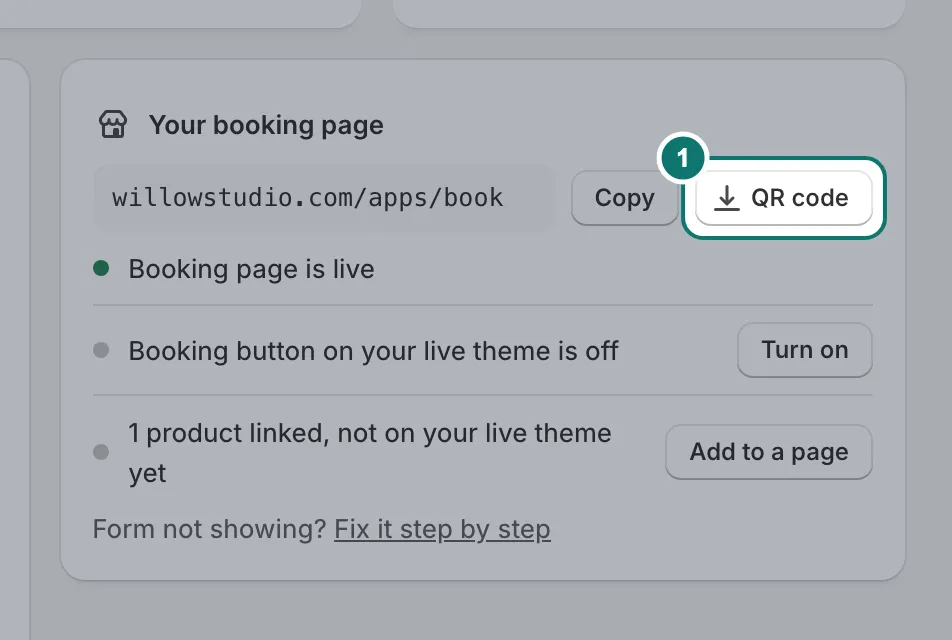
Your booking page
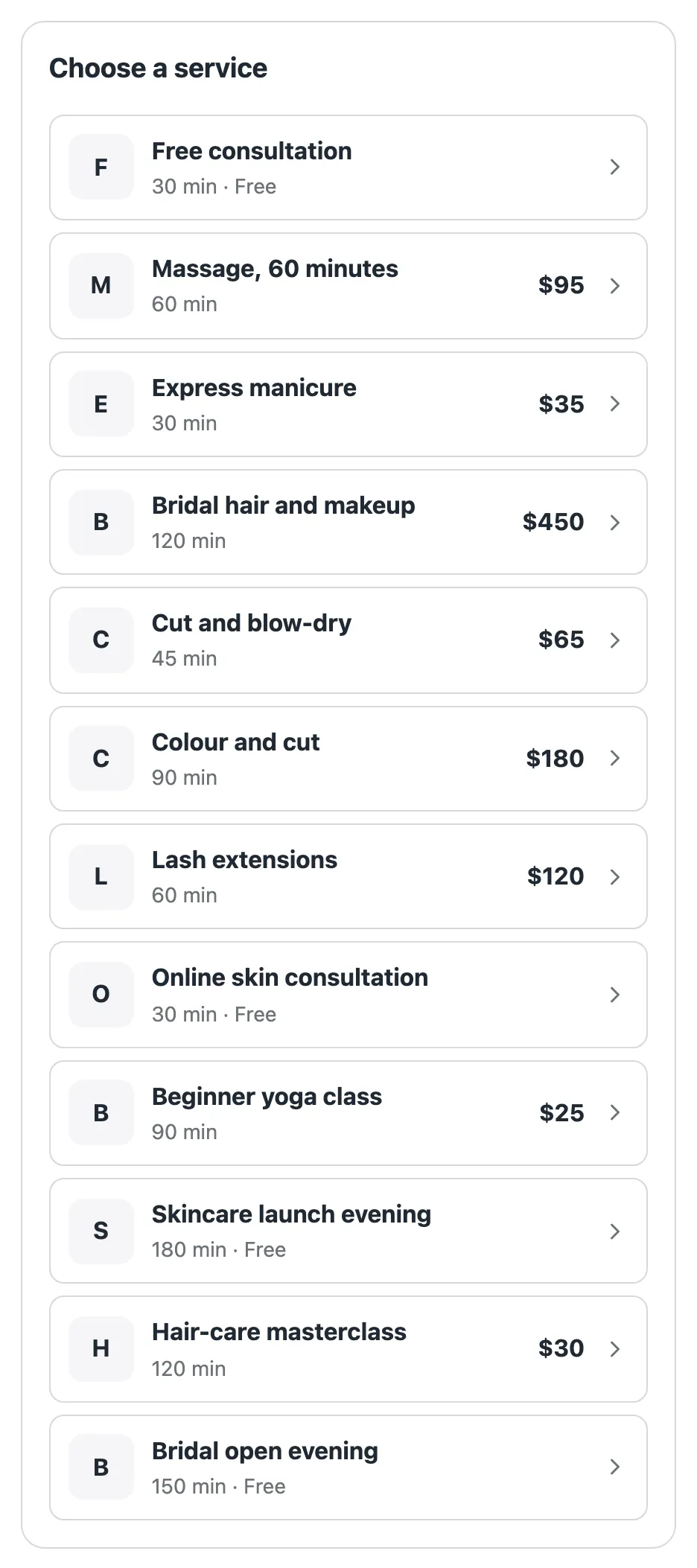
Every store gets a booking page at yourstore.com/apps/book. It lists your services in your theme, with your header and footer around it. Customers pick a service and book from there.
Untick On the booking page on a service to leave it off the list. Its own link still works, so you can share a service privately.
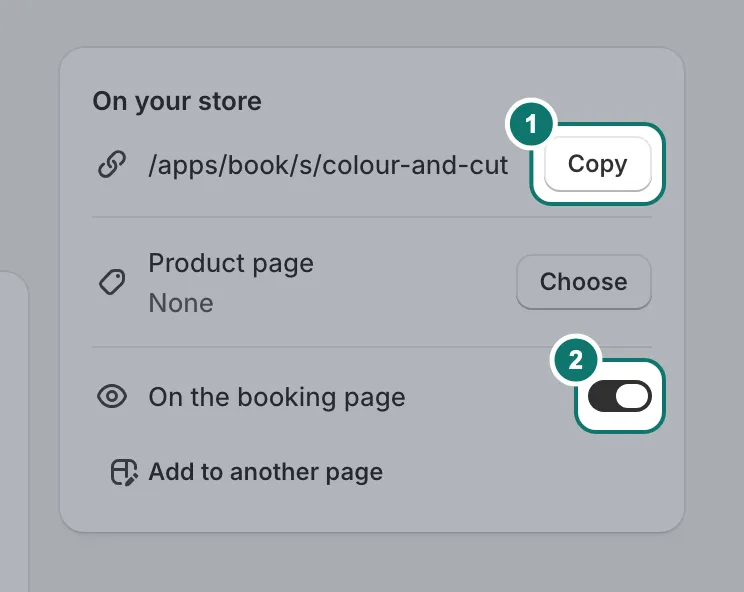
A link for each service
Each service has its own link, under On your store on the service’s page. Copy it into an Instagram bio, a WhatsApp message, an email or a QR code. The link opens that service’s booking form straight away.
How it looks
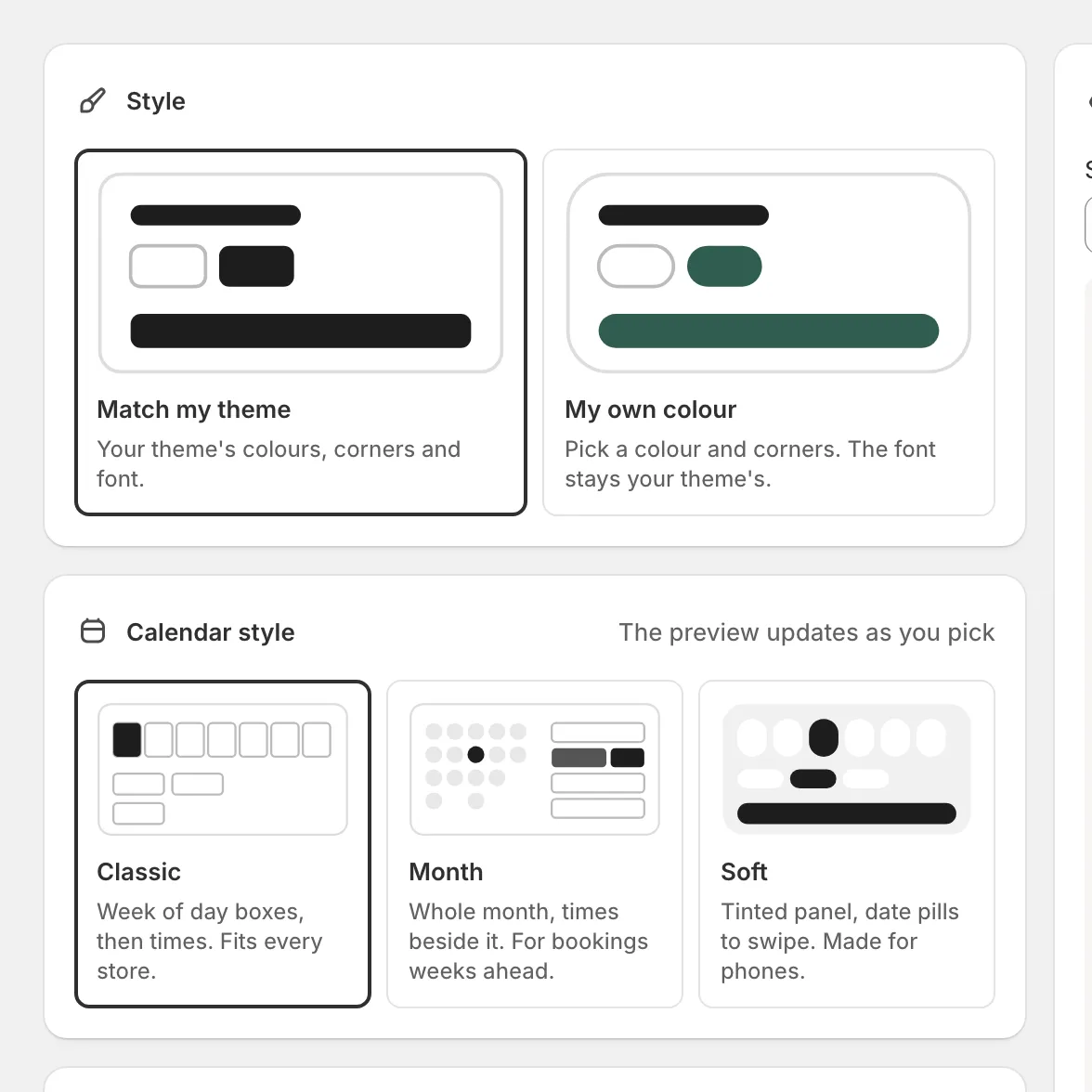
The Appearance page has a live preview of the form.
- Style. “Match my theme” uses your theme’s button colour, corners and font. “My own colour” lets you pick a colour and corners.
- Calendar style. Classic (a week of day boxes), Month (the whole month beside the times) or Soft (date pills to swipe, made for phones).
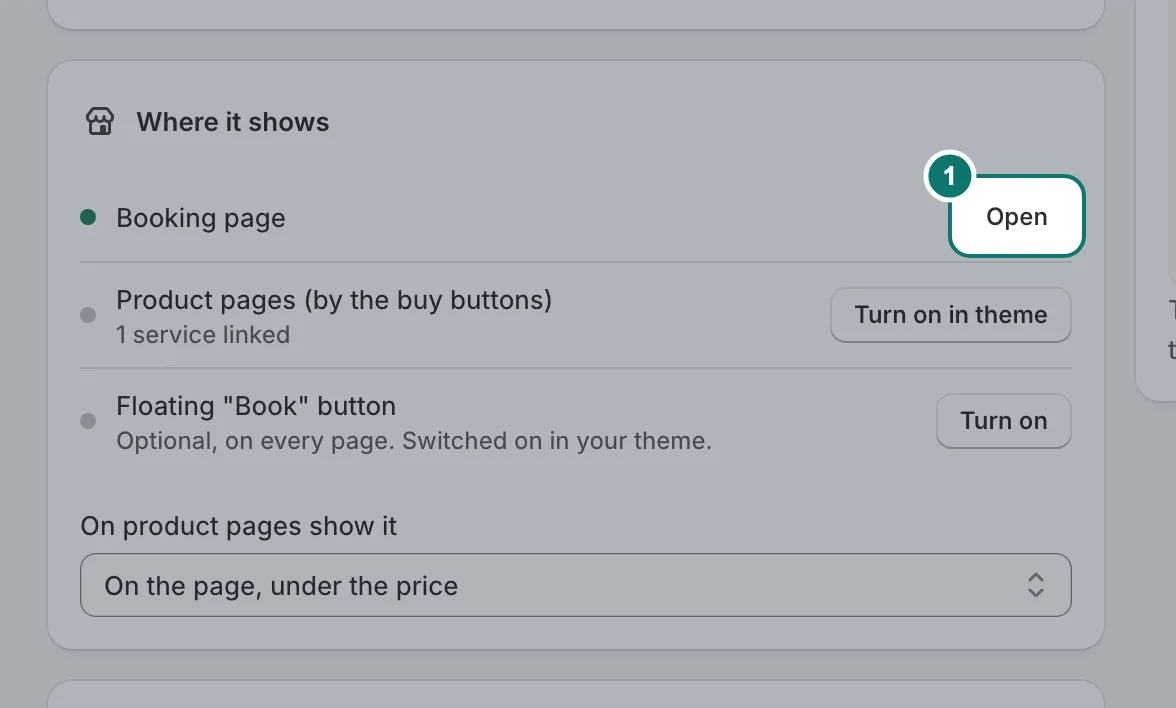
Where it shows
Your booking page, product pages and the floating Book button, each with its own switch.
QR code
Home has a QR code button next to your booking page’s address. Download it and print it for your counter or window.