
Each service has its own way to pay. You choose it on the service, and the booking form changes to match.
At a glance
| Way | The customer pays | The booking is |
|---|---|---|
| Free | Nothing | Confirmed straight away |
| Paid at checkout | The full price, in your Shopify checkout | Confirmed once paid |
| A deposit | Part in your Shopify checkout, the rest at the venue | Confirmed once the deposit is paid |
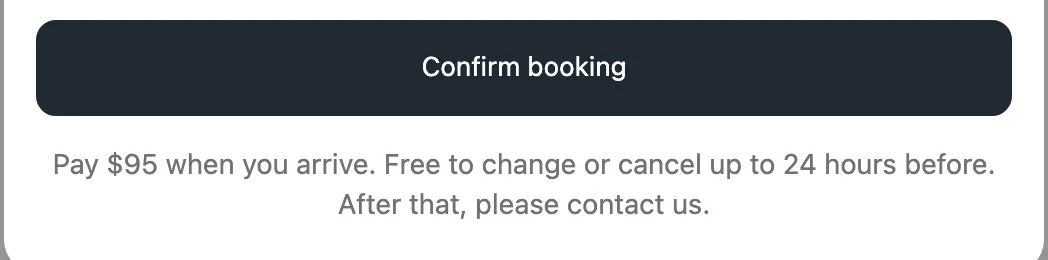
| Pay at the venue | Everything at the visit | Confirmed straight away |
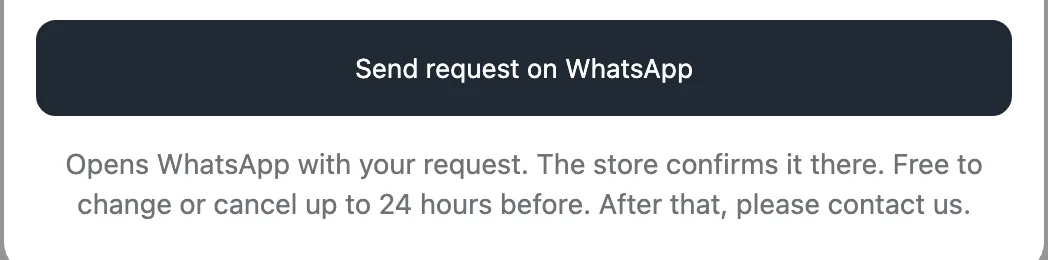
| Request on WhatsApp | Everything at the visit | A request, until you confirm it |
Choose the way for a service
- In Bookmerce, open Services & events and choose the service.
- Under How customers book, pick a way.
- For Paid at checkout, set Customer pays now to the full price, or to “A deposit now, the rest later” and enter the deposit.
- Click Save.
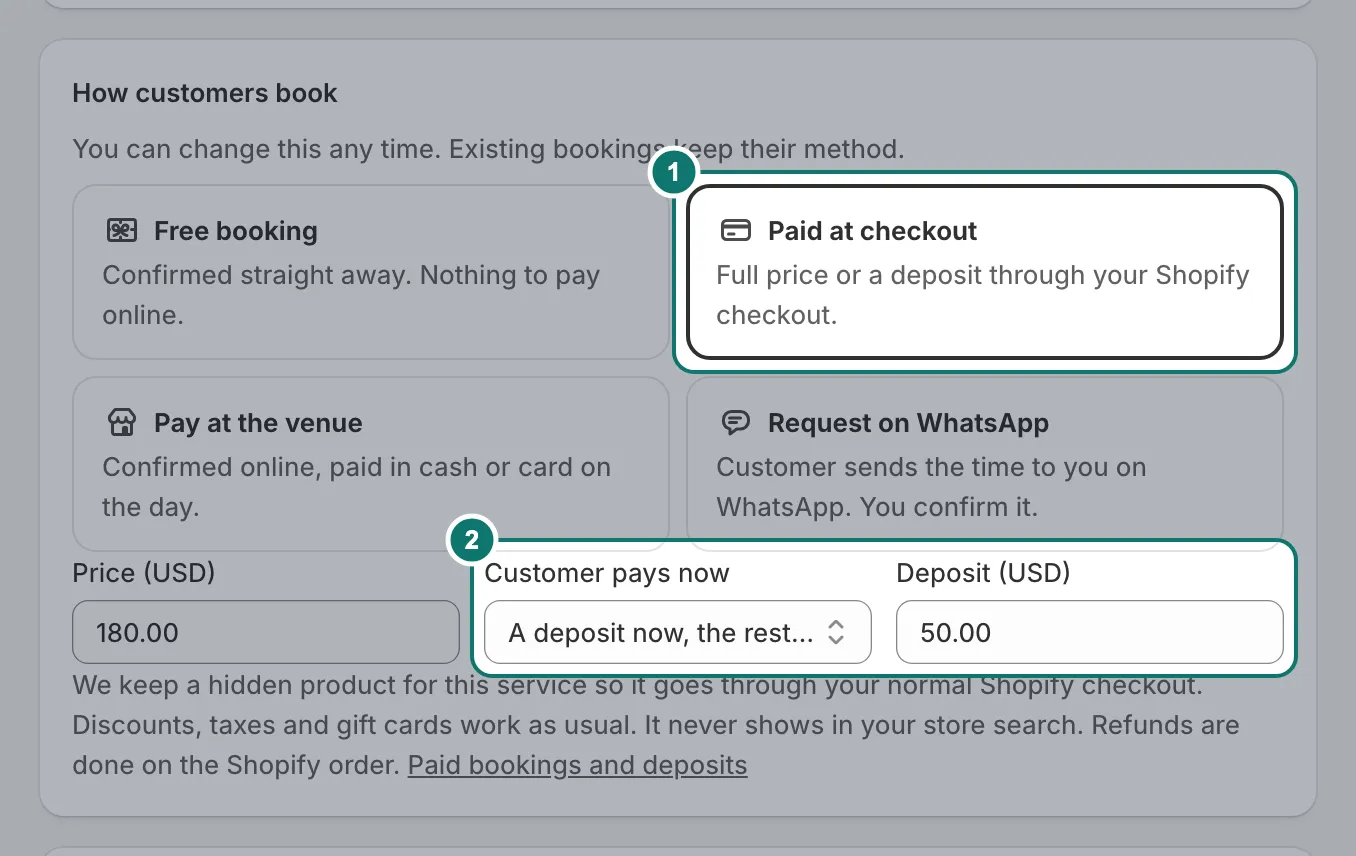
You can change it any time. Bookings already made keep the way they were made.
What your customers see
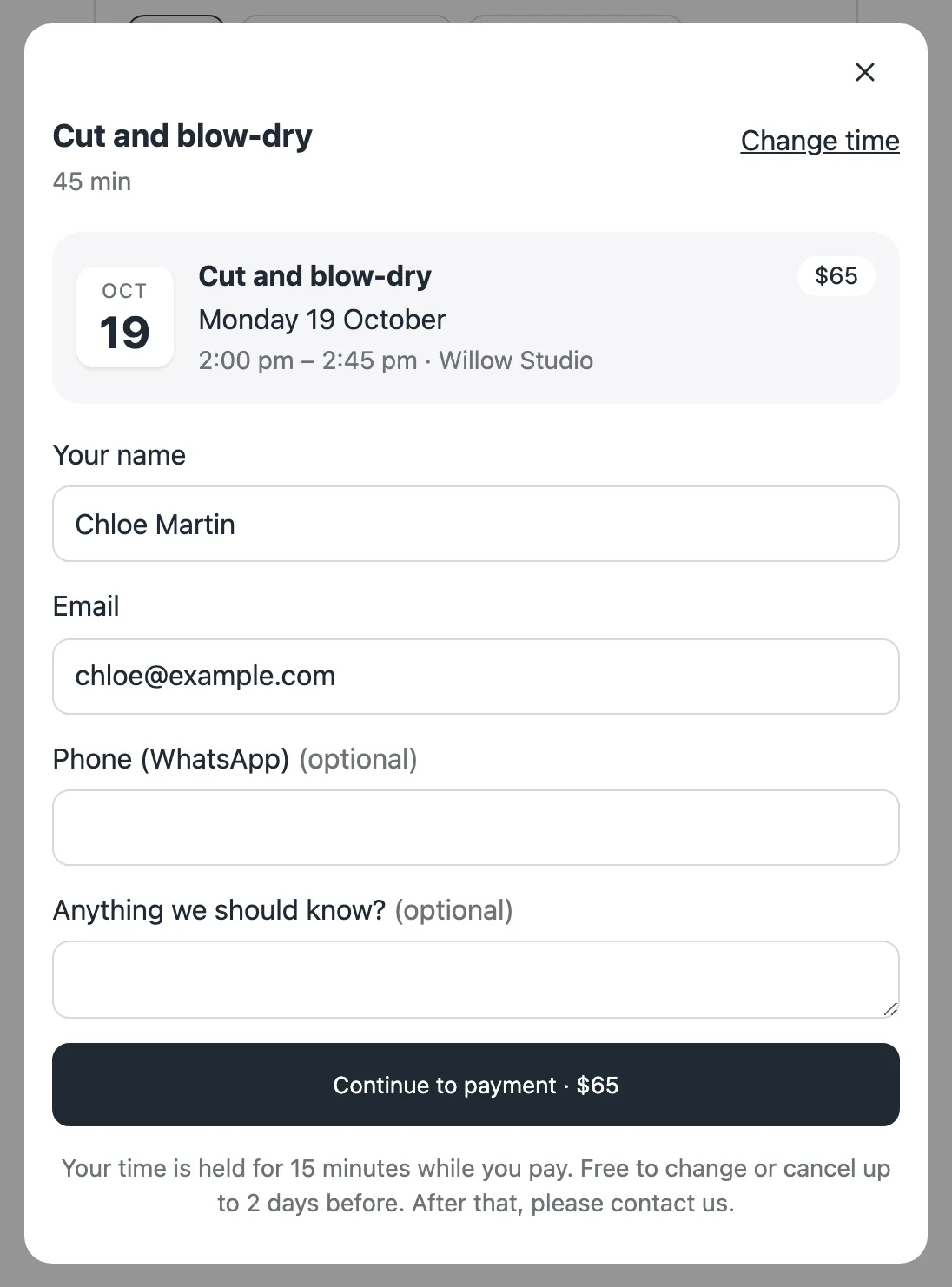
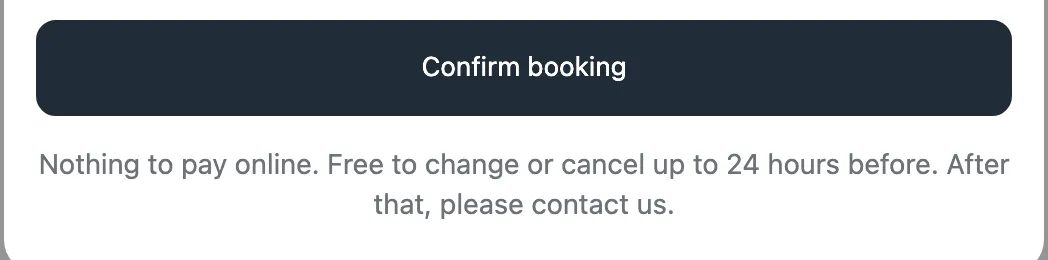
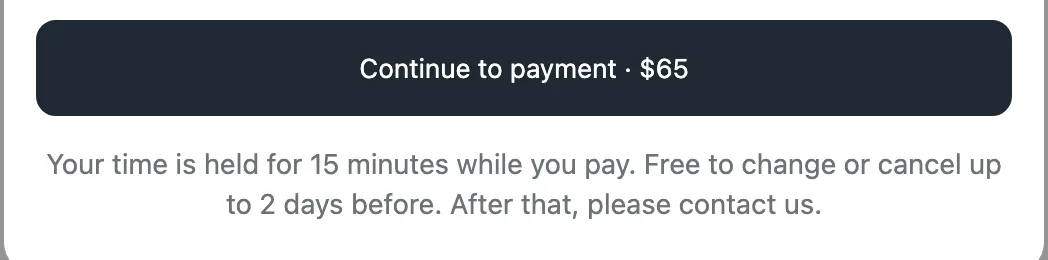
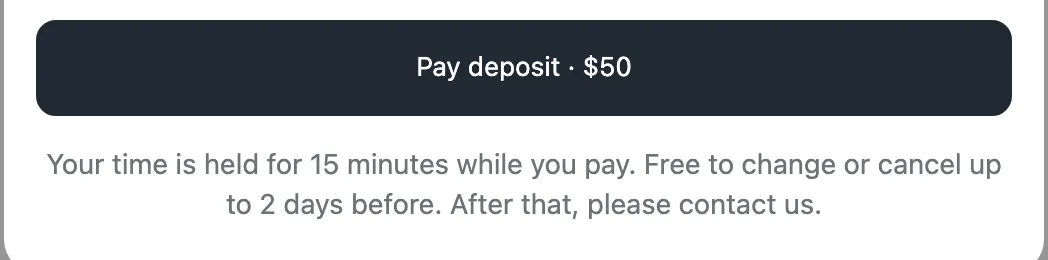
The form is the same for every way: the customer picks a time, then fills in their details. Only the last button and the line under it change, so they always know what happens when they press it.
For paid services the button takes them to your Shopify checkout, and their time is held while they pay (15 minutes by default).
Paid at checkout and deposits
Payments go through your normal Shopify checkout, so every payment method you have in Shopify works, and discounts, taxes and gift cards work as usual. For each paid service we keep a hidden product in your store with the service’s price; you don’t need to touch it. If the customer doesn’t finish paying, the time is released.
With a deposit, collect the rest at the venue, or by Shopify invoice before the visit (Settings › Payments). The dashboard shows “Deposit paid” and how much is still due.
Requests on WhatsApp
- In Settings › Payments, add your WhatsApp number.
- On the service, choose Request on WhatsApp and save.
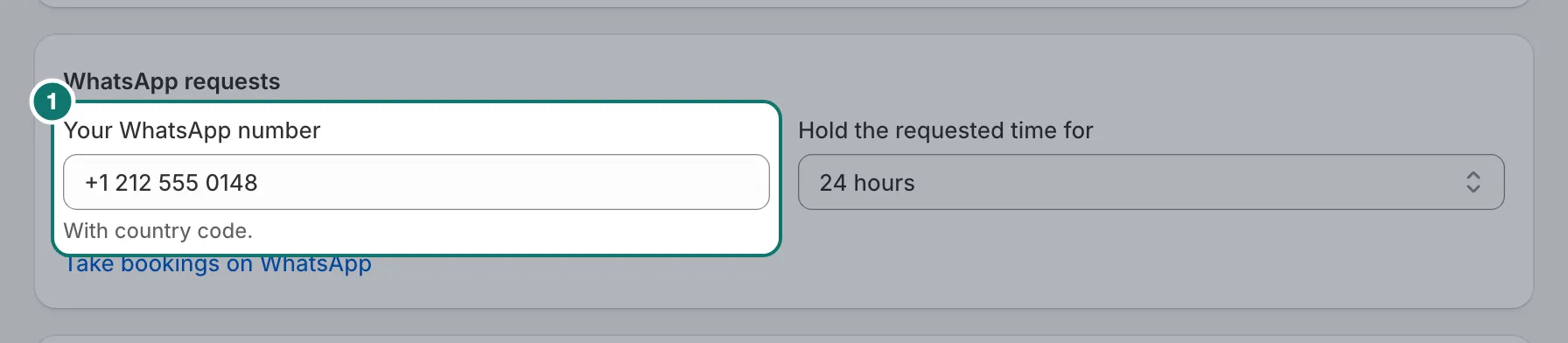
The customer picks a time, and WhatsApp opens with the request written for them. The time is held for you (24 hours by default) while you confirm it in Requests. Replying on WhatsApp doesn’t confirm it: you always confirm in Requests. WhatsApp requests are paid at the venue.
This suits places where customers like to chat before they book.
Refunds
Refunds are made on the Shopify order. When a paid booking is cancelled, Bookmerce reminds you to refund it, with a link to the order.