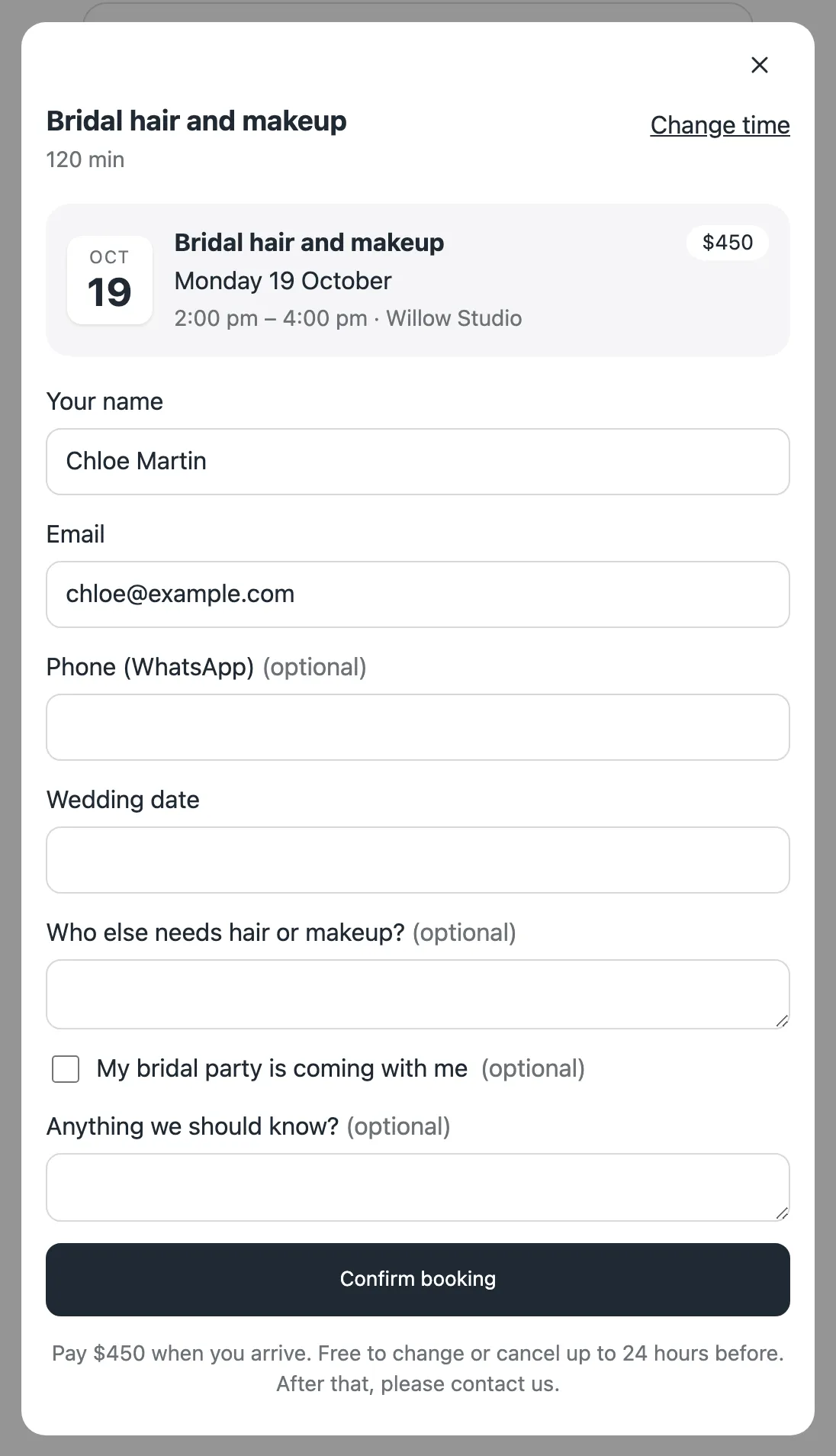
Approve each booking first
Some services need a look before you say yes: a long session, a large group, a first visit.
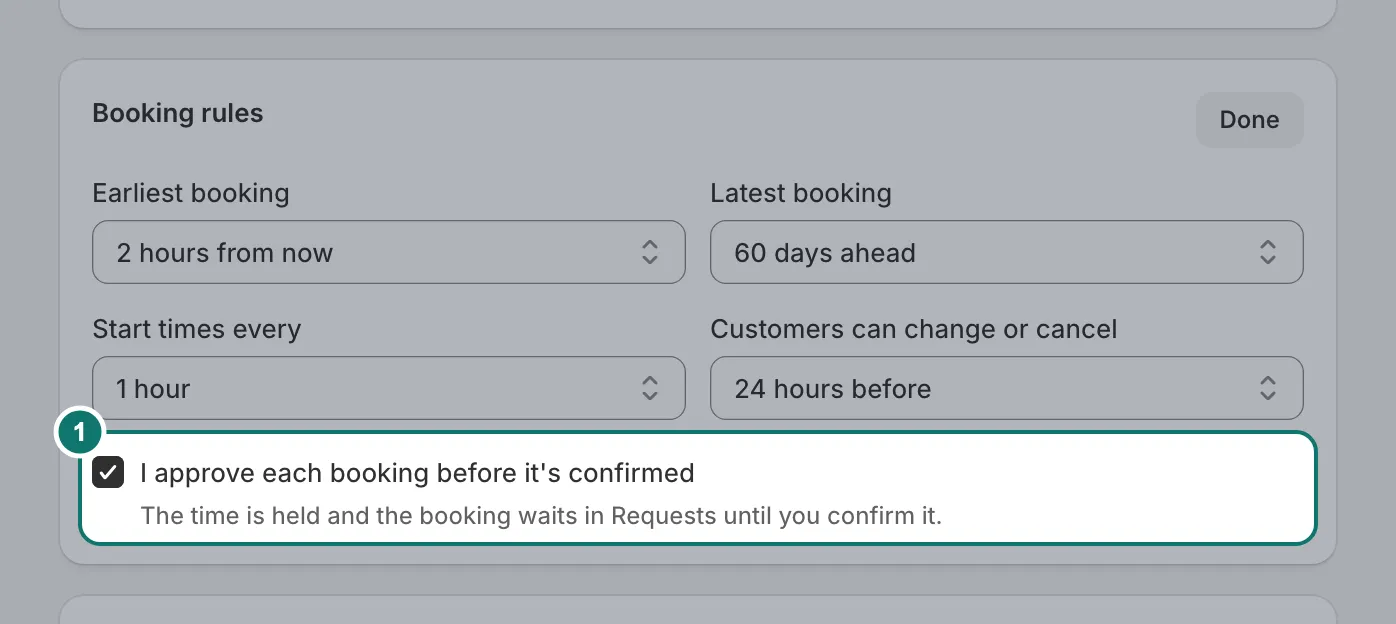
- Open the service and press Change next to Booking rules.
- Tick I approve each booking before it’s confirmed, then Save.
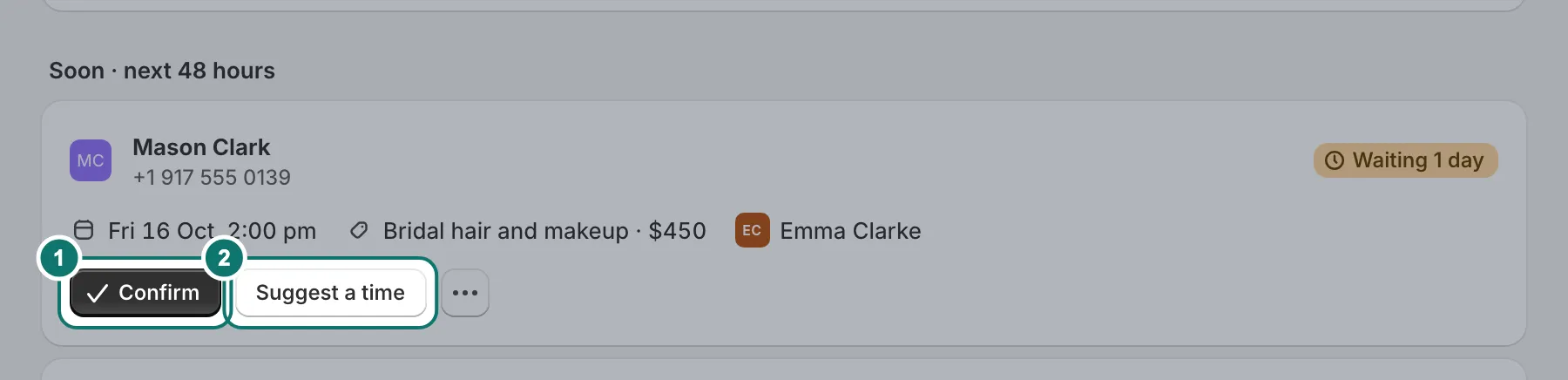
Customers then send a request. The time is kept for them while you decide. Requests wait on the Requests page, soonest first, with how long each one has waited.
Home shows how many requests are waiting, so none are forgotten.
Ask your own questions
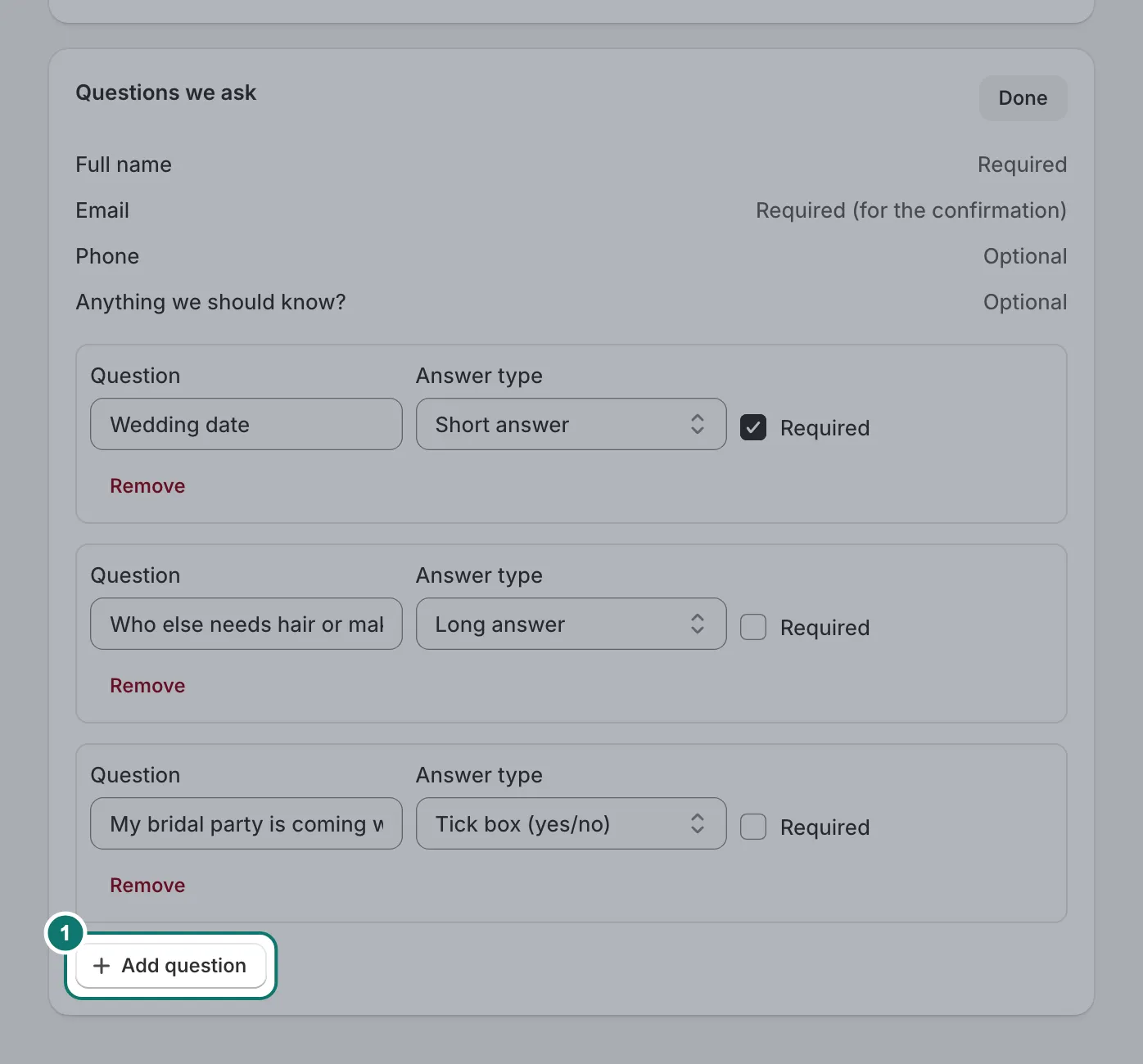
- Open the service and press Change next to Questions we ask.
- Press Add question, write it and choose the answer type. Tick Required if it must be answered.
- Save.
Customers answer them on the booking form. The answers appear on the booking when you open it from the calendar or the list.
Keep questions short and only ask what you need. Every extra question makes the form a little longer on a phone.